

Most Indian small businesses start managing leads the same way: a spreadsheet. It’s free, it’s familiar, and it works – right up until it doesn’t.
If you’re tracking enquiries in Excel and wondering whether you’re doing it right, this guide gives you a clean, practical system you can set up today. It also answers the question every growing business eventually asks: when does a spreadsheet stop being enough?
Let’s do both – first the how, then the honest truth about the limits.
What does “managing leads in Excel” actually mean?
Managing leads in Excel means keeping every enquiry – from a phone call, a website form, a WhatsApp message, or a walk-in – in one organized spreadsheet, with columns that track who the lead is, where they came from, and what the next step is.
Done well, it turns scattered enquiries into a single list you can sort, filter, and follow up from. Done badly, it becomes a graveyard of half-remembered contacts and missed follow-ups.
The difference is structure. Here’s how to get it right.
How to set up a lead tracker in Excel (step by step)
Step 1: Create the columns that matter
Open a blank sheet and add these headers across row 1. These are the fields that actually drive follow-up, not just record-keeping:
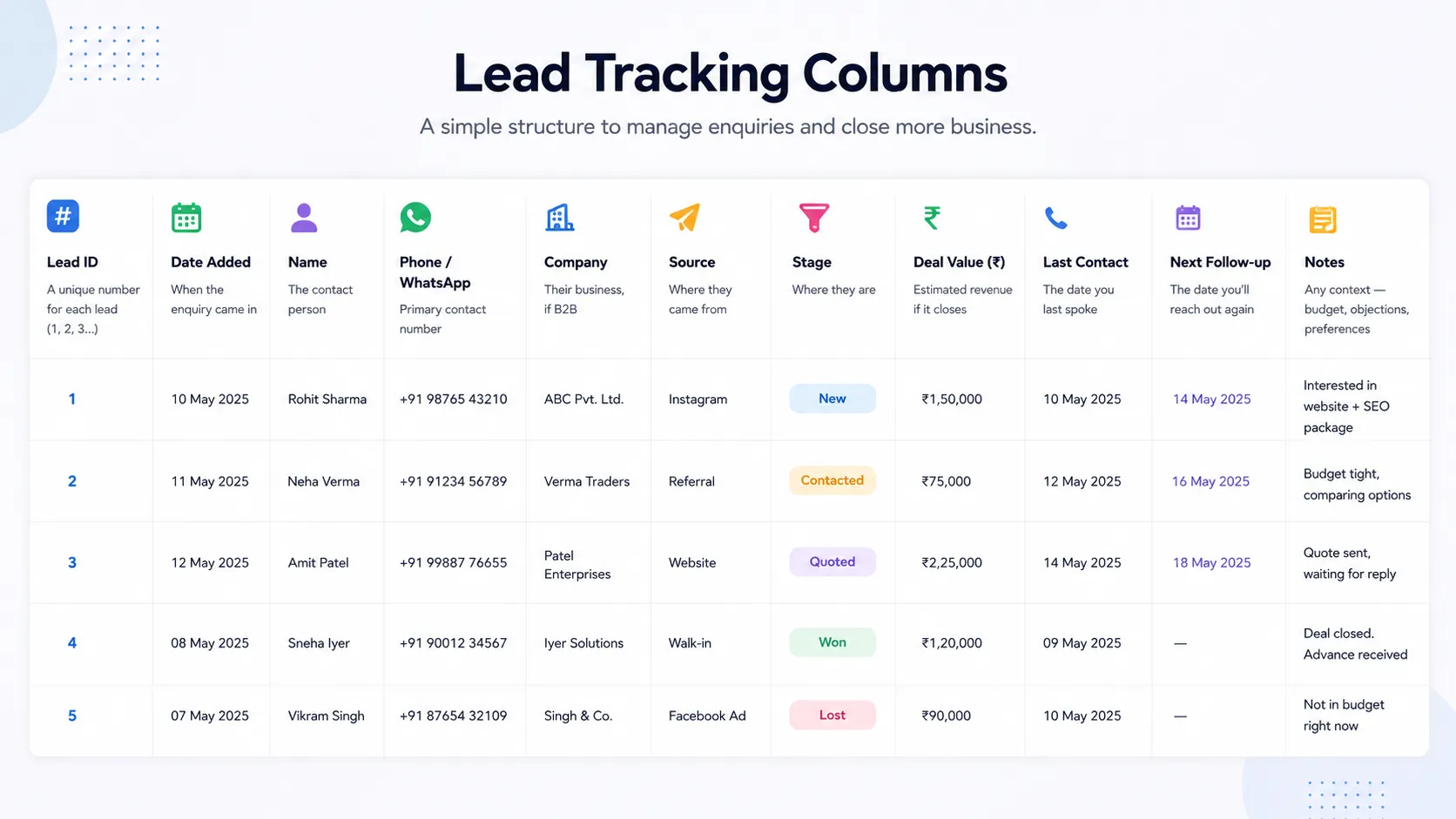
| Column | What it captures |
|---|---|
| Lead ID | A unique number for each lead (1, 2, 3…) |
| Date Added | When the enquiry came in |
| Name | The contact person |
| Phone / WhatsApp | Primary contact number |
| Company | Their business, if B2B |
| Source | Where they came from (Instagram, referral, website, walk-in) |
| Stage | Where they are: New, Contacted, Quoted, Won, Lost |
| Deal Value (₹) | Estimated revenue if it closes |
| Last Contact | The date you last spoke |
| Next Follow-up | The date you’ll reach out again |
| Notes | Any context — budget, objections, preferences |
The two most important columns here are Next Follow-up and Stage. Most businesses track the name and number but forget the follow-up date — which is exactly where deals leak.
Step 2: Turn it into a proper Table
Select your headers and data, then press Ctrl + T. This converts the range into an Excel Table. It sounds minor, but it’s the single upgrade that makes everything after this easier — sorting, filtering, and formatting all become one click.
Step 3: Add dropdowns for Stage and Source
Manually typing “Contacted” versus “contacted” versus “Cntacted” will wreck your filtering later. Use Data → Data Validation → List to add a dropdown for Stage (New, Contacted, Quoted, Won, Lost) and Source. Now every entry is consistent.
Step 4: Use colour to see your pipeline at a glance
Apply Conditional Formatting to the Stage column: green for Won, red for Lost, yellow for New. In one glance you can see where every lead sits. Do the same for the Next Follow-up column so any date that’s already passed turns red – your overdue follow-ups.
Step 5: Sort by Next Follow-up every morning
This is the habit that makes the whole system work. Each morning, sort the sheet by Next Follow-up date. The leads at the top are the ones you owe a call today. This one routine is worth more than any formula.
That’s a complete, working lead tracker. For a free head start, Microsoft, Smartsheet, and several others offer downloadable lead-tracking templates you can adapt.
Can Excel work as a CRM?
Yes – for a while. A well-built Excel sheet is a basic CRM: it stores contacts, tracks a pipeline, and holds your notes in one place. For a solo founder or a two-person team handling a handful of leads a week, it’s genuinely enough, and there’s no reason to pay for software you don’t need yet.
We’ve written before about how many businesses run perfectly well on Excel in the early days – the spreadsheet isn’t the enemy. The problem is what happens when you grow.
Why you shouldn’t manage leads in Excel forever
Here’s the honest part. Excel is a brilliant starting point and a poor long-term home for your leads. As your enquiries climb from ten a week to ten a day, five specific cracks appear.
1. It never reminds you to follow up. A spreadsheet sits there silently. It won’t ping you when a hot lead has gone three days without contact. Warm prospects cool off, and you only notice when it’s too late. Follow-up is where most sales are won or lost — and it’s exactly what a static sheet can’t help with.
2. It breaks the moment two people share it. The second a colleague opens the same file, you’re into “leads_final_v3.xlsx” territory — overwritten rows, conflicting versions, lost notes. Excel was never built for a team touching the same data at once.
3. There’s no history. A spreadsheet shows the current state, not the story. You can’t see that this customer called twice in March, went quiet, then asked about pricing in June. When a team member leaves or a lead gets handed over, all that context vanishes.
4. Manual entry eats your time — and invites errors. Every lead typed by hand is a chance for a wrong number, a missed field, or a duplicate. As volume grows, the data entry itself becomes a part-time job, and the data quality quietly rots.
5. It doesn’t scale with your process. The day you want to capture leads automatically from a Facebook or Instagram ad, assign them to different team members, or see how many enquiries turned into sales this month — the spreadsheet hits a wall. These are the exact CRM mistakes small businesses make when they stretch a tool past its limits.
None of this means Excel failed. It means you’ve outgrown it – which is a good problem to have.
Excel vs a CRM: a quick comparison
| Excel Spreadsheet | A Simple CRM | |
|---|---|---|
| Cost to start | Free | Low monthly fee |
| Follow-up reminders | None | Automatic |
| Multiple users | Breaks with sharing | Built for teams |
| Lead history | Not tracked | Full timeline per lead |
| Lead capture | Manual entry | Auto from forms & ads |
| Reporting | Manual formulas | Built-in dashboards |
| Setup effort | Minutes | About a day |
Excel wins on cost and familiarity. A CRM wins on everything that matters once you’re handling real volume: memory, reminders, teamwork, and growth.
When should you switch from Excel to a CRM?
A good rule of thumb: move to a CRM when any one of these becomes true —
- You’re handling more than 20–30 active leads at once
- More than one person needs to work the same leads
- You’ve lost a deal because a follow-up slipped
- You want leads captured automatically instead of typed in
- You can’t easily answer “how many enquiries did we get last month?”
If two or more of those describe you, the spreadsheet is now costing you more than it saves.
Making the move without losing your data
The good news: switching is painless. Because you built your tracker as a clean, columned table, it exports straight to a CSV file that imports directly into most CRMs. Nothing is lost — your existing leads simply move into a system that actually follows up for you.
That’s the whole philosophy behind NeerSoft CRM — a lightweight, affordable tool built for Indian small businesses and agencies that have outgrown the spreadsheet but don’t want the bloat of enterprise software. If you want the full picture of how a CRM fits an Indian SMB, our complete CRM guide walks through it, and you can see straightforward pricing here.
The bottom line
Start with Excel. Build it properly – the right columns, dropdowns, colour-coding, and a daily sort by follow-up date. It’ll serve you well while you’re small.
But watch for the signs that you’ve outgrown it: missed follow-ups, version chaos, lost history. When they appear, moving to a simple CRM isn’t an expense – it’s the thing that stops leads slipping through the cracks. And that’s usually the difference between a business that plateaus and one that scales.
Frequently Asked Questions
Can I use Excel as a free CRM?
Yes. A structured Excel sheet with columns for contact details, pipeline stage, and follow-up dates works as a basic CRM for small teams with low lead volume. It lacks automatic reminders, shared multi-user access, and lead history – so most businesses move to a dedicated CRM as they grow.
What columns should a lead tracker in Excel have?
The essential columns are Lead ID, Date Added, Name, Phone/WhatsApp, Company, Source, Stage, Deal Value, Last Contact, Next Follow-up, and Notes. The most important are Stage and Next Follow-up, because they drive your follow-up routine.
When should a small business move from Excel to a CRM?
Switch when you’re managing more than 20–30 active leads, when more than one person needs access, when you’ve lost a deal to a missed follow-up, or when you want to capture leads automatically. Any two of these signals mean a spreadsheet is now costing more than it saves.
Will I lose my data moving from Excel to a CRM?
No. A cleanly structured Excel sheet exports to CSV and imports directly into most CRMs, so your existing leads transfer without loss.
